Hardware Bezels
Touch, mouse, and hardware are interchangeable: every knob, key, and button maps to the same on-screen behavior.
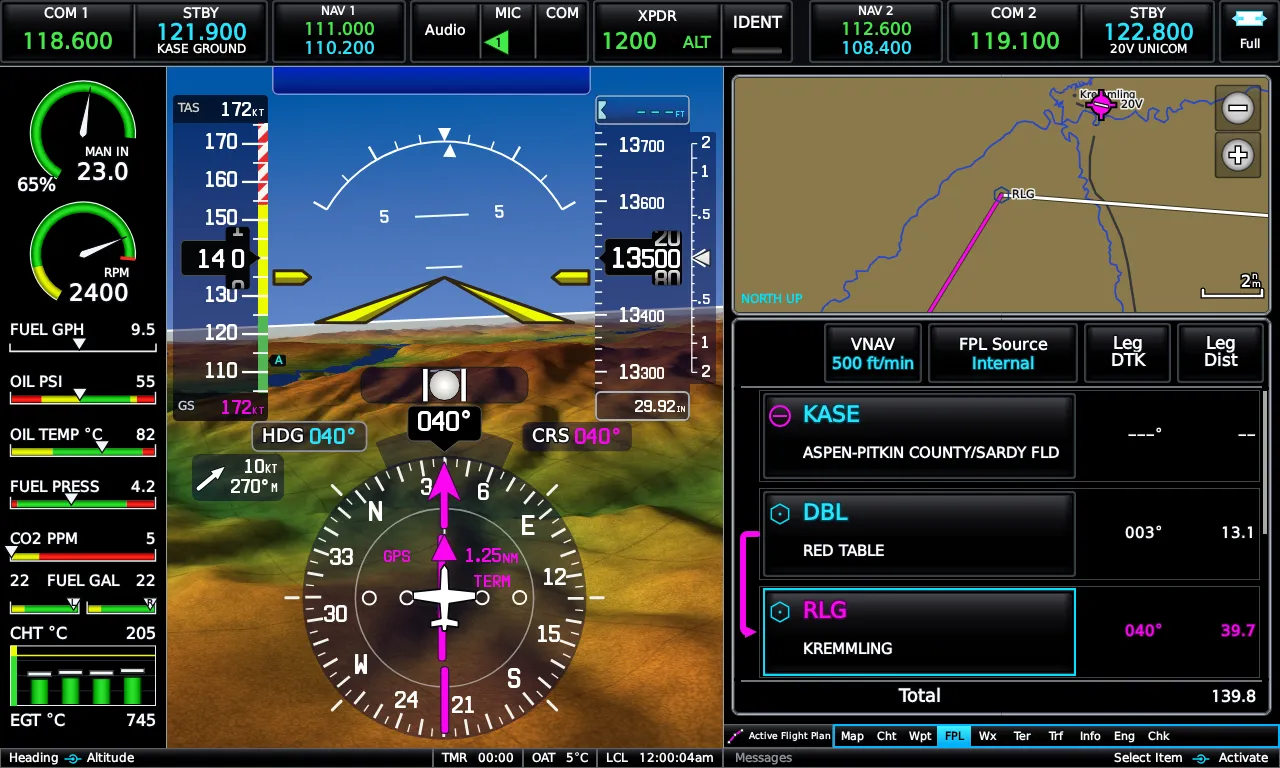
The on-screen bezel and knobs
Section titled “The on-screen bezel and knobs”By default the display draws the photoreal bezel, the frame of keys and knobs around the screen. Its four hard keys (MENU, BACK, Direct-To, NRST) work by touch or mouse like everything else. The knobs behave as on the real unit. The small right knob zooms the map pages, steps tabs, edits values, and otherwise moves a cyan focus ring you can press to activate. The large right knob cycles pages.
The left knobs set the heading bug (inner) and selected altitude (outer). Pressing the left knob syncs the heading bug to your current heading. On a full-screen PFD the right knobs set course and baro instead.
Two PFD Setup rows change this. Press To Toggle Knob Action, when enabled, makes a knob press swap to an alternate pair of functions for ten seconds instead of syncing. Right Side Knob Action (Course/Baro, FD Bug/Baro, or Heading/Altitude) decides that pair. FD Bug/Baro gives the flight director bug and baro, and the other two give course and baro.
The display is a fixed 1280×768 (5:3) instrument that scales like an image. It fits any window size and any monitor, and the layout does not change. The E3X remembers window position, size, and fullscreen state between sessions.
In X-Plane the displays are the sim’s own pop-out windows. Open them from Plugins → Emrelia E3X. The menu lists each unit with the bezel (Unit 1 PFD, Unit 2 MFD), where the drawn hard keys and knobs are live. It also lists each unit without it (… (no bezel)), the bare screen a hardware bezel or a dedicated panel monitor wants. Double-click the top strip of the content to fill the monitor with no title bar, and again to come back.
On Linux with more than one monitor, you need to tell X-Plane the screen layout on its command line. Otherwise the windows come back on the main screen. See Install: X-Plane → Linux: more than one monitor.
RealSimGear bezels
Section titled “RealSimGear bezels”The E3X reads a RealSimGear bezel’s USB-serial output directly, with no
RSG plugin required. A bezel press therefore looks the same as a tap and arrives
in the same order. For the panel’s 1280×800 LCD, open the unit’s (no bezel)
window in X-Plane and drag it onto the panel’s screen. Then double-click its top
strip to fill it with no title bar. In a desktop browser the equivalent is
?bezel=0&fit=fill (bezel artwork off, display stretched to the glass, a 4%
stretch you will not see).
Mapping is a small JSON panel map in your data directory’s settings folder
(panel.json). It pairs each line the panel sends with a key, knob, or any
on-screen touch target. An annotated example and a ready-made map for the
RealSimGear G500 ship with the install. Discovering a panel’s messages is built
in: with an empty map, press everything and the log names each unmapped message
once.
The mapper understands encoder acceleration for fast knob spins, and it
understands long-presses. Hold BACK for the default MFD page. Hold Direct-To for
two seconds for Smart Glide, if its
binding sets "hold_key": "DIRECT_TO_HOLD" and "hold_ms": 2000. Holding MENU
does nothing.
A bezel is an optional input, never a requirement. Everything it does, touch does. For the wider picture, see the E3X for X-Plane.
Driving the bezel through RealSimGear’s plugin (X-Plane)
Section titled “Driving the bezel through RealSimGear’s plugin (X-Plane)”Instead of the direct serial reader above, you can let RealSimGear’s own X-Plane plugin own the bezel. This is the recommended path in X-Plane. Use one or the other: while the plugin holds the bezel’s serial port, the direct reader cannot. The plugin turns each key and knob into an X-Plane command, and the E3X’s companion plugin registers those commands. The bezel then drives the display with no panel map.
One quirk needs a one-file fix, and it is RealSimGear’s default, not an E3X setting. RealSimGear’s stock command map sends both rings of the G500’s left (PFD) knob to a single command. Out of the box, the inner and outer rings therefore do the same thing: both move the heading bug. A small command-map override separates them:
- Download the E3X command map for the RealSimGear G500.
- Save it as
CommandMapping.iniin your aircraft’s folder, the folder that holds the.acf. - In X-Plane, open the RealSimGear plugin menu and choose Reload Command Map (or reload the aircraft).
RealSimGear loads the aircraft map after its global one and the aircraft map wins. This replaces the stock G500 mapping for that aircraft. The left inner ring now moves the heading bug and the outer ring the altitude bug. The rest of the bezel maps to the matching E3X controls (NRST, Direct-To, and MENU/BACK on the bottom-row keys, hold-aware).
To fix every aircraft at once instead, add the same sections to RealSimGear’s
global CommandMapping.ini in its plugin folder. The E3X’s generated Cessna
172 SP aircraft already includes this file.
Yoke and joystick buttons (X-Plane)
Section titled “Yoke and joystick buttons (X-Plane)”The companion plugin exposes the E3X’s keys and knobs as ordinary X-Plane
commands (e3xtouch/input/…). Bind MENU, BACK, Direct-To, NRST, and the knob
clicks to your yoke or button box in X-Plane’s own joystick settings. You do not
need a panel map.
A button held on the direct_to command for two seconds activates
Smart Glide. A momentary X-Plane command,
fired once by RealSimGear’s plugin or another mapper, cannot be held. Use the
on-screen key, the serial key, or the direct_to_hold command on a spare button.
Touchscreens and panel PCs
Section titled “Touchscreens and panel PCs”Any touchscreen works: touch arrives as ordinary pointer input, scaled with the display, with no calibration layer needed. In X-Plane’s pop-out windows a one-finger drag pans the map or scrolls a list, and a two-finger pinch zooms. Multi-touch there is Windows-only for now. The E3X fully supports multi-monitor and dedicated panel-PC setups: put the window where you want it and it stays there. Two units run side by side (Unit 1 PFD and Unit 2 MFD), each on its own window or screen.
Emrelia E3X is an independent product of Emrelia LLC. It is not affiliated with, endorsed by, or sponsored by Garmin Ltd. or its affiliates. G3X Touch™ is a trademark of Garmin Ltd. For flight simulation use only — not for use in real-world navigation. Map imagery contains data © OpenStreetMap contributors (ODbL) and other sources — see data attributions. © 2026 Emrelia LLC.